

How to block internet access for devices with Unifi Network
Introduction
Section titled “ Introduction”I have a number of devices that I no longer want to give access to the internet. For example, the smart TV and a P1 reader that tries to call ‘home’ every second. Fortunately, it is very easy to create a firewall rule within the Unifi Network Application.
How To
Section titled “ How To”Create IP Group
Section titled “Create IP Group”-
Go to
SettingsandProfiles -
Go to tab
IP Groups -
Create a new profile
Instructions:
- Required Profile Name:
BlockInternet, for example - Required Type:
IPv4 Address/Subnet - Required Address:
192.168.x.x, add the IP addresses of devices that are not allowed to connect to the internet
- Required Profile Name:
-
Click the
Addbutton (all the way at the bottom left)
You can now use this IP group when creating the firewall rule.
Create Firewall Rule
Section titled “Create Firewall Rule”-
Go to
SettingsandSecurity -
Go to tab
Traffic & Firewall Rules -
Click
Create Entryand make sureRule Typeis set toAdvancedInstructions:
- Required Type:
Internet Out - Required Name:
drop group block internet, for example - Required Action:
Drop - Required Protocol:
AllandBefore Predefinedis enabled
Source:
- Required Source Type:
Port/IP Group - Required Address Group:
BlockInternet, this is the name of the IP Group you created
- Required Type:
-
Leave the other fields at their default value and click the
Add Rulebutton (all the way at the bottom left)
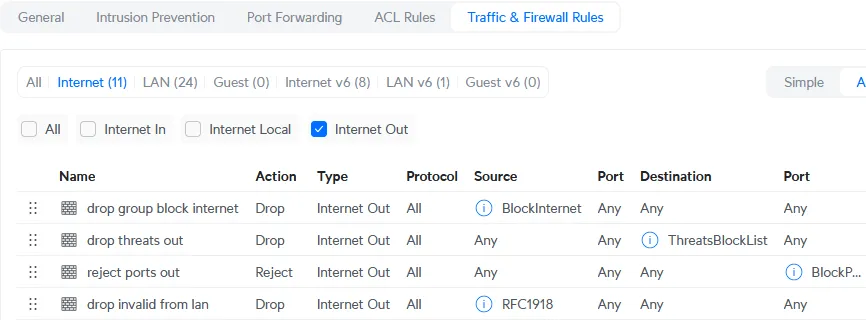
In this way I have created a few more rules. The Internet Out rules are now looking like this:
No comments found for this note.
Join the discussion for this note on Github. Comments appear on this page instantly.